
The journey of a machine learning model doesn’t end with training; it culminates in deployment. TensorFlow’s robust ecosystem provides tools, notably the SavedModel format and TensorFlow Lite (TFLite), to bridge the gap between training and real-world application, often on devices with limited resources.
A SavedModel plays an important role in building the bridge between the training and deployment phases. A complete TensorFlow program, including weights and computation, is contained within a SavedModel. It does not require the original model-building code to run, which makes it useful for sharing or deploying using various technologies like TFLite, TensorFlow.js, TensorFlow Serving, or TensorFlow Hub.
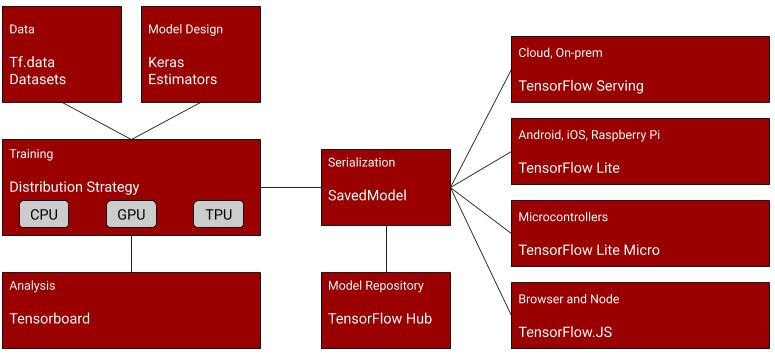
The Power of the TensorFlow SavedModel
While originally separate packages, TensorFlow and Keras are now combined. The standard practice for saving a full Keras model is using the TensorFlow SavedModel format.
A full Keras model consists of multiple components:
- An architecture, or configuration, which specifies what layers the model contains, and how they’re connected.
- A set of weight values (the “state of the model”).
- An optimizer (defined by compiling the model).
- A set of losses and metrics (defined by compiling the model or calling
add_loss()oradd_metric()).
SavedModel Structure
When saved, a SavedModel directory typically contains three key parts: assets/, saved_model.pb, and variables/.
saved_model.pb– This is the most important part for deployment. It stores the model architecture and training configuration, including the optimizer, losses, and metrics. This file includes the graph definitions asMetaGraphDefprotocol buffers.variables/– This subfolder contains the output from the TensorFlow Saver. This is where the weights are saved. It typically includes files likevariables.data-?????-of-?????andvariables.index.assets/– This subfolder contains auxiliary files such as vocabularies.
Saving the TensorFlow Model
TensorFlow provides straightforward methods for saving a trained model using the standard SavedModel format.
Keras Model Saving Example
Using Keras’s model.export() The method automatically generates a SavedModel folder. This example demonstrates saving and reloading a Keras model identically
import numpy as np
import tensorflow as tf
from tensorflow import keras

def get_model():
# Create a simple model.
    inputs = keras.Input(shape=(32,))
    outputs = keras.layers.Dense(1)(inputs)
    model = keras.Model(inputs, outputs)
    model.compile(optimizer="adam", loss="mean_squared_error")
    return model

model = get_model()
# ... Training steps omitted ...

# Calling `save('my_model')` creates a SavedModel folder `my_model`.
model.export(mobilenet_save_path)

# It can be used to reconstruct the model identically.
reconstructed_model = keras.models.load_model("my_model")
# The reconstructed model is already compiled and has retained the optimizer state.
General SavedModel API Saving
After training your model, you can use the general TensorFlow deployment workflow function tf.saved_model.save:
export_dir = 'saved_model/1'

tf.saved_model.save(model, export_dir)
This creates a directory with files and metadata describing the model. For example, when saving MobileNet, the directory structure includes `assets`, `saved_model.pb`, and `variables`.
Converting the SavedModel to TFLite
Once you have your saved model, you can use the TensorFlow Lite converter to convert it to the optimized TF Lite format.
converter = tf.lite.TFLiteConverter.from_saved_model(export_dir)

tflite_model = converter.convert()
The resulting tflite_model (a byte string) can then be written to disk as a single .tflite file that fully encapsulates the model and its saved weights:
import pathlib

tflite_model_file = pathlib.Path('model.tflite')

tflite_model_file.write_bytes(tflite_model)
Now, to compare the size of the 2 models, you can do something like
import os

saved_model_size = sum(os.path.getsize(os.path.join(dirpath, filename)) for dirpath, dirnames, filenames in os.walk(mobilenet_save_path) for filename in filenames)

print(f"SavedModel directory size: {saved_model_size / (1024 * 1024):.2f} MB")

tflite_model_size = os.path.getsize('model.tflite')

print(f"TFLite model file size: {tflite_model_size / (1024 * 1024):.2f} MB")
In our case, this is the difference in the sizes
SavedModel directory size: 33.27 MB
TFLite model file size: 16.12 MB
Performing Inference with TFLite
To use the smaller TFLite model for predictions, you must instantiate a `tf.lite.Interpreter`. If you have the file saved to disk, you can use the model_path property to load the file:
# Loading using the file path:
interpreter = tf.lite.Interpreter(model_path=tflite_model_file)
Once loaded, you can start performing inference. To run inference, you need to get the details of the input and output tensors to the model, set the value of the input tensor, invoke the model, and then get the value of the output tensor.
# Load the TFLite model (as shown above)
# It is necessary to call interpreter.allocate_tensors() before inference

# Get input and output tensors.
input_details = interpreter.get_input_details()
output_details = interpreter.get_output_details()

to_predict = # Input data in the same shape as what the model expects

# Set the value of the input tensor
interpreter.set_tensor(input_details['index'], to_predict)

# Invoke the model (run inference)
interpreter.invoke()

# Get the value of the output tensor
tflite_results = interpreter.get_tensor(output_details['index'])

# Process results...
A large part of the skills in running models on embedded systems is being able to format your data to the needs of the model. For example, if you use a common model like MobileNet, you might need to decode and resize image data to specific dimensions, such as 224×224 3-channel images. Performing this conversion is a significant part of engineering for ML systems.
To see other examples, refer to our Colab notebooks here. If you are interested in training your team on TensorFlow and LiteRT, then give us a shout.